前言
在 Windows 系統中, 如果能直接在資料夾右鍵選單開啟 VsCode 會非常方便. 這篇文章教你如何設定這個功能.
安裝時設定
想要在資料夾右鍵開啟 VsCode 的功能的話, 需要在安裝的時候就勾選相關選項.
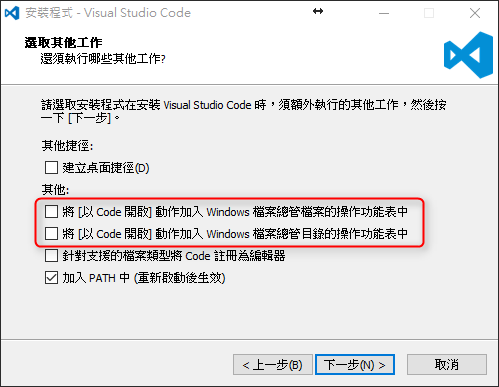
使用註冊檔設定
錯過安裝時設定也別擔心, 可以使用 Windows 註冊檔.
首先先創建一個任何名稱都可以的.txt, 接著在裡面貼上下面這一段內容:
Windows Registry Editor Version 5.00

[HKEY_CLASSES_ROOT\*\shell\Open with VS Code]
@="Edit with VS Code"
"Icon"="C:\\Program Files\\Microsoft VS Code\\Code.exe,0"

[HKEY_CLASSES_ROOT\*\shell\Open with VS Code\command]
@="\"C:\\Program Files\\Microsoft VS Code\\Code.exe\" \"%1\""

[HKEY_CLASSES_ROOT\Directory\shell\vscode]
@="Open Folder as VS Code Project"
"Icon"="\"C:\\Program Files\\Microsoft VS Code\\Code.exe\",0"

[HKEY_CLASSES_ROOT\Directory\shell\vscode\command]
@="\"C:\\Program Files\\Microsoft VS Code\\Code.exe\" \"%1\""

[HKEY_CLASSES_ROOT\Directory\Background\shell\vscode]
@="Open Folder as VS Code Project"
"Icon"="\"C:\\Program Files\\Microsoft VS Code\\Code.exe\",0"

[HKEY_CLASSES_ROOT\Directory\Background\shell\vscode\command]
@="\"C:\\Program Files\\Microsoft VS Code\\Code.exe\" \"%V\""
最後將檔名改為 VSCodeRightClick.reg, 然後點開檔案, 就可以對資料夾點擊右鍵選擇使用 VsCode 開啟.
總結
透過以上設定, 就能快速地在任何資料夾右鍵開啟 VsCode, 大幅提升開發效率.